Video sharing
How to share videos on Discord with a clean link
When attaching the file directly is awkward, a focused watch link keeps the conversation moving and gives you one place to manage the video after it has been sent.
Why use a video link in Discord
A hosted link is useful when the clip is inconvenient to attach, when you need to reuse it across channels, or when you want to remove access later without deleting several Discord messages. The conversation receives one clean URL while the source remains organized in your library.
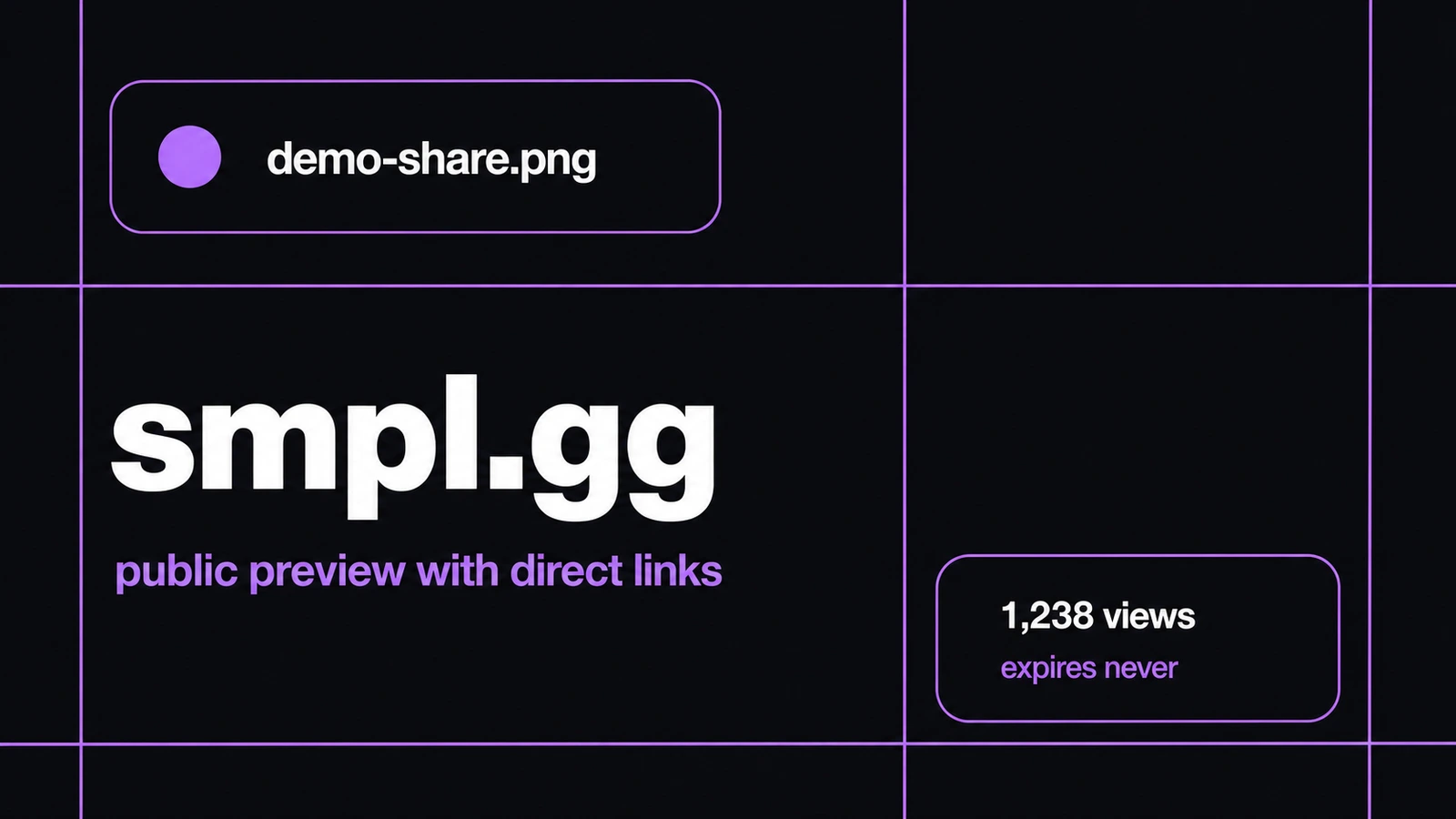
A dedicated watch page also gives the viewer context. They can see the filename, recognize the uploader, play a supported format in the browser, and download the original when the share allows it.
Upload and create the link
- Open Studio and upload the video, or select a video that is already in your library.
- Wait for the upload to finish and confirm that the preview represents the correct clip.
- Choose Share, then select public, unlisted, or private visibility. Unlisted is a practical default for a link intended for one Discord conversation.
- Add a password, expiry date, or maximum view count if the clip should have a limited audience or lifetime.
- Create the share and copy the finished URL directly from the library workflow.
- Paste the URL into Discord with a short description of what the viewer should review.
Make the preview useful
Use a meaningful filename before uploading. A name such as homepage-animation-review-2.mp4 gives the recipient more confidence than a camera-generated filename and produces better context when the link is revisited later.
For a public creator release, associate the share with the profile you want viewers to recognize. For an internal review, keep it unlisted and avoid adding confidential details to the public-facing filename.
Control a link after posting it
The important advantage of sending a managed link is that the share remains under your control. You can inspect views, change its settings, revoke the link, or create a replacement share without uploading the source video again.
If the video is updated, create a new share for the new version and clearly label it in the Discord thread. Keeping old and new versions distinct prevents reviewers from commenting on the wrong cut.
Troubleshoot playback
Browser playback depends on the video format and codec supported by the viewer's browser. If a video does not play inline, the original can still be downloaded when downloads are available. A broadly supported MP4 export is a sensible choice for review links.
If Discord does not refresh a preview after you replace or reconfigure a link, open the share directly to verify the current page. The link itself remains the source of truth even when a chat client has cached older preview metadata.
Frequently asked questions
Do people need an account to watch the video?
No account is required for an accessible public or unlisted share. Password and other share controls still apply.
Can I remove access after posting the link?
Yes. Revoke the share from Studio or use an expiry date when you create it.
Can I see whether a video link was viewed?
Studio Shares displays the view count for a share so you can see whether the link has been opened.
What video format should I use?
A broadly supported MP4 export is usually the most compatible choice for browser playback, though available playback still depends on the encoded codec and browser.